How to add Hindi subtitles to Instagram Reels
Lots of people scroll Reels with the sound off. Subtitles keep them watching, and in Hindi they reach the viewers who think in Hindi. This guide shows how to add Hindi subtitles that are timed to your voice and set in a proper Hindi font, using your phone or laptop.
It takes about five minutes, and it's free for Reels up to 90 seconds.
Step 1
Record your Reel as usual
Film in portrait (9:16) on any phone and keep your own voice in the video. A clear voice with little background music gives the most accurate subtitles. Don't add text in the editing app yet.
Step 2
Upload it to Fontreel
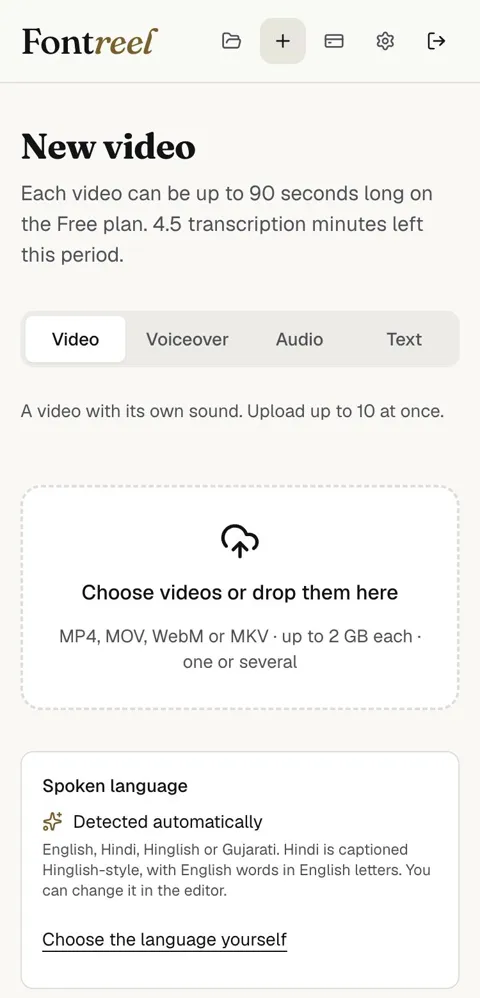
Create a free account at fontreel.com, tap New video, then Choose videos and pick your Reel. The spoken language is detected automatically.
Hindi is captioned the way most creators speak it: Hindi words in Devanagari, English words like "video" or "reels" in English letters. If you want every word in Devanagari, tap Choose the language yourself and pick Hindi before uploading.
Step 3
Check the words
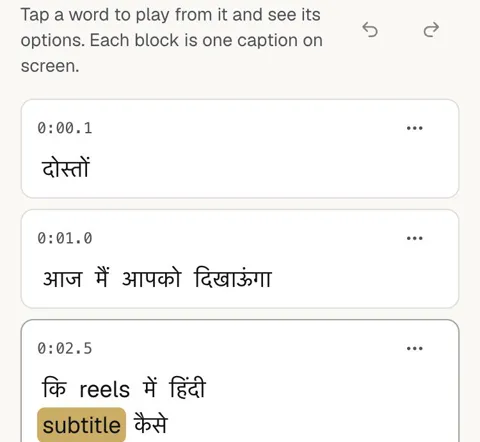
When it's ready, open the Transcript tab. Each block is one caption on screen. Tap any word to hear it and fix its spelling; its timing stays the same. You can also split or join captions.
Step 4
Pick a style and font
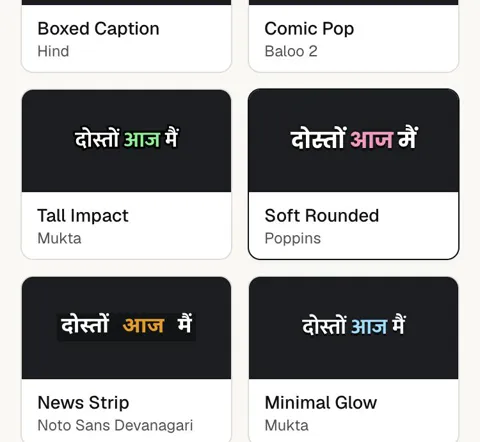
Open the Style tab and tap a style. Each one pairs a Hindi font that draws every conjunct correctly (Baloo 2, Poppins, Mukta, Hind or Noto Sans Devanagari) with a highlight colour for the word being spoken.
Further down the Style tab, set Safe-zone guides to Reels so your subtitles stay clear of Instagram's buttons and caption text.
Step 5
Export and download
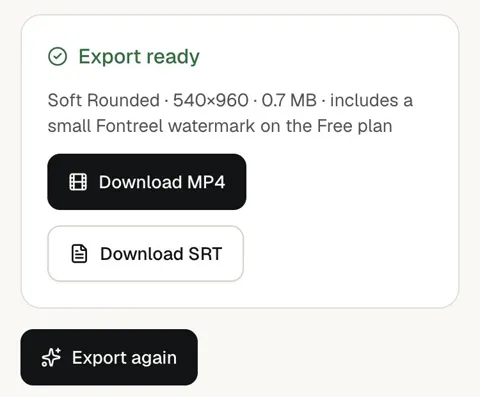
Open the Export tab and tap Export video. In about a minute you can Download MP4, with the subtitles burned into the video, and an SRT file if you also want separate subtitles. On the Free plan the export is 720p with a small Fontreel watermark; Creator removes it and exports in 1080p.
Step 6
Post it on Instagram
Open Instagram, tap +, choose Reel and pick the downloaded video from your gallery. The subtitles are part of the video, so leave Instagram's own auto captions off to avoid two sets of text.

Tips
Two short lines
Three to five words per caption read best on a phone. If a caption feels long, split it in the Transcript tab.
Lower middle, not the bottom
Instagram covers the bottom of a Reel with your caption and buttons. Middle or slightly below the face is safest.
Fix names first
Names, brands and slang are the words speech models get wrong most often. Scan for them before you export.
Questions
Is it free to add Hindi subtitles to Reels?
Yes, for Reels up to 90 seconds: the Free plan includes 3 exports a month with a small watermark. Paid plans remove the watermark and allow longer videos.
Will Hindi words show as boxes?
No. Every font in Fontreel was checked letter by letter for Devanagari, and an export stops rather than drawing a box.
Can I get subtitles in English letters (Roman Hindi)?
Captions are written in Devanagari, with English words in English letters. After transcription, the editor can also switch the captions to Roman script.
Try it on your next video. Free for videos up to 90 seconds.
Start free